Getting started
ModbusManager is a Windows desktop tool for talking to Modbus devices — PLCs, drives, energy meters and inverters. It combines a fast register poller, a built-in slave simulator, a tag engine with Structured Text scripting and, in the Pro edition, a full drag-and-drop HMI dashboard, a data logging Historian and an alarm system. Everything runs locally; no cloud account is required.
Where to go next
Connecting
Click Connect to open the connection dialog. ModbusManager offers nine transport modes covering direct serial, direct network and framing-over-network for gateways.
| Mode | Use it for |
|---|---|
| TCP/IP | Modbus TCP devices over Ethernet. Default port 502. |
| RTU | Direct serial RS-485 / RS-232 via a COM port or USB adapter. |
| ASCII | Serial Modbus ASCII — each byte sent as two hex characters. |
| RTU / TCP | RTU framing tunnelled over TCP (serial gateway / converter). |
| ASCII / TCP | ASCII framing over a TCP connection. |
| UDP | Modbus UDP/IP. |
| RTU / UDP | RTU framing over UDP/IP. |
| ASCII / UDP | ASCII framing over UDP/IP. |
| TCP-SEC | Modbus/TCP Security (TLS). Default port 802. |
Modbus TCP/IP
- Open Connect and select the TCP/IP tab.
- Enter the device IP address (for example 192.168.1.100) and port (usually 502).
- Set the slave / unit ID (often 1) and click Connect.
Modbus RTU (RS-485 / RS-232)
- Connect your USB-RS485 adapter and note its port — COM3, COM4 on Windows; /dev/ttyUSB0 on Linux.
- Open Connect → RTU and choose the serial port.
- Match the device baud rate, parity, data bits and stop bits, then connect. RTS-toggle, echo removal and a custom baud-rate field are available for adapters that need them.
If a connection drops, ModbusManager attempts to recover it automatically and reflects the live state in the interface, so transient cable or network glitches do not require a manual reconnect.
Polling registers
Once connected, configure the poll from the toolbar and watch values stream into the Registers grid.
Function code & addressing
| FC | Reads | Type |
|---|---|---|
| FC01 | Coils | Read/write bits |
| FC02 | Discrete Inputs | Read-only bits |
| FC03 | Holding Registers | Read/write 16-bit words |
| FC04 | Input Registers | Read-only 16-bit words |
- Start address and quantity define the block to read.
- Address base switches between Base 0 (protocol addressing, first register = 0) and Base 1 (documentation addressing, first register = 1) so displayed addresses match your device manual.
- Poll delay (ms) sets the interval between successive polls.
Data formats & scaling
Register values can be shown as 16-bit integers, combined into 32-bit floats, and reinterpreted with word swap and big- or little-endian byte order using the toolbar toggles. Per-address scaling converts a raw register into engineering units directly in the grid.
Each grid row has a quick action to send that register straight to the Dashboard as a bound widget — a fast way to build a screen from a live device.
Writing values
The Write tab sends values back to the device: a single coil (FC05) or holding register (FC06), or a block of multiple registers at once. Enter the target address and value(s), confirm, and the result is reported immediately.
Writing to a connected controller changes its state. Confirm the slave ID, address base and value before sending — especially on live machinery.
Charts & monitoring
The Chart tab plots the values from the active poll over time, so you can watch trends and spot noise visually. For protocol-level work, the Serial Monitor shows the raw Modbus request and response frames, and the Test Center lets you compose and send individual requests (including FC08 diagnostics) and inspect the exact reply.
Scanning tools
Slave Scan probes a range of slave / unit IDs and reports which ones respond — useful when a device is on the bus but its address is unknown. Address Scan sweeps a range of register addresses on a known slave to find which return data, helping you map an undocumented device.

Slave simulator
The Slave tab turns ModbusManager into a Modbus server that answers requests as if it were real hardware. Define one or more virtual slave devices, each with its own register map, and let an external master (or a second copy of the tool) poll them.
- Develop and test a SCADA/HMI or master application before the hardware exists.
- Reproduce a device register layout for training or demonstrations.
- Validate dashboard screens against known, controllable values.
Tags & Structured Text
Tags give your data meaningful names and let you compute derived values — the bridge between raw registers and a readable dashboard.
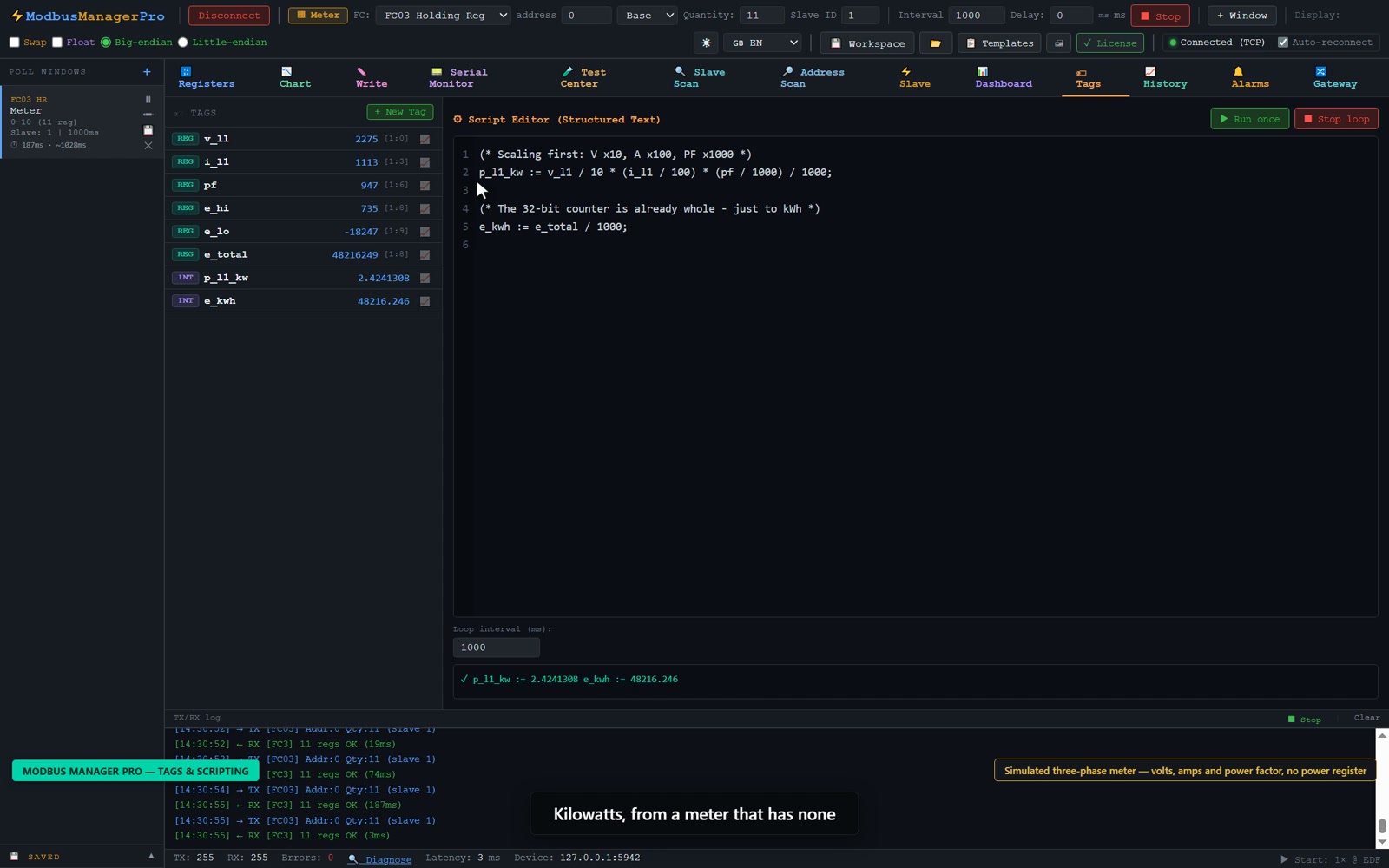
| Type | Description |
|---|---|
| Register (REG) | Bound to a real register (slave ID, register type, address). Its value tracks the live device. |
| Internal (INT) | A computed or stored value that lives only inside the tool, typically set from a Structured Text script. |
The Tags tab includes a Structured Text editor (the IEC 61131-3 style language used on PLCs). A script can read register tags, apply logic and write results to internal tags. Set a loop interval in milliseconds and start the loop to run it continuously.
IF MotorSpeed > 100 THEN
AlarmActive := TRUE;
ELSIF MotorSpeed < 10 THEN
AlarmActive := FALSE;
END_IF;
(* Write to internal tag *)
OutputValue := MotorSpeed * 2;
Any tag — register or internal — can be selected as the source for a dashboard widget. Compute an alarm flag or a scaled value once in a script, then show it anywhere on your screens.
HMI dashboard
The Dashboard is the heart of the Pro edition: a drag-and-drop canvas for building operator screens. Drop widgets from the toolbox, bind each to a register or tag, arrange the layout, then switch to Runtime to operate the live screen or go fullscreen as an operator display. You can build multiple pages (including click-to-open popup pages), snap to a grid, multi-select, copy/paste, undo/redo and export a screen as a PNG.
Widget categories
| Category | Widgets |
|---|---|
| Standard Objects | Rectangle, Rounded Rect, Circle, Ellipse, Polygon, Polyline, Arc, Ellipse Arc, Pie Segment, Ellipse Segment, Static Text, Connector |
| Basic | Gauge, Lamp, Bar, Value, Button, Toggle, Line |
| Solar / Energy | Semi Gauge, Trend, Flow Arrow, Icon + Value, Progress Bar, Status Badge |
| Process | Tank, Valve, Pump, Pipe |
| Input / Data | Slider, Setpoint, Clock |
| Charts | Bar Graph, Multi Trend, Alarm List |
Binding: register or tag
Select a widget to open the properties panel. Most value widgets offer a Source choice: a Register (slave ID, register type, address — polled automatically in the background) or a Tag (a named value from a script). Label, colour, scale, units, decimals, thresholds and size appear according to the widget type.
Charts group & the channel editor
Bar Graph, Multi Trend and Alarm List each hold a list of channels rather than a single binding. Select the widget and click Edit channels… in the properties panel to add or remove channels and set each one's name, source (register or tag), colour, and — depending on the widget — its threshold, shared min/max scale or trend history length. Register channels refresh at the polling rate and tag channels refresh when their tag updates, so you can mix both on one chart.
For a full walkthrough with examples, see the Modbus HMI Dashboard guide.

Solar / SmartLogger
ModbusManager is well suited to PV monitoring. Using the Huawei SmartLogger Modbus Remapped scheme you can read SUN2000 inverter data over FC03, apply the correct scaling, and present a whole plant on a dashboard — the Solar/Energy widget category exists for exactly this.
Register addresses, scaling and FC03 polling for Huawei inverters are covered in the dedicated Huawei SmartLogger Modbus guide.
Workspaces
A workspace captures your whole setup — connection settings, poll configuration, tags, scripts and every dashboard page — in a single file. Use Save Workspace to write it to your Documents folder and Open Workspace to restore it or move it to another machine. Build a screen once for a device family and reuse the workspace as a template.
Licensing
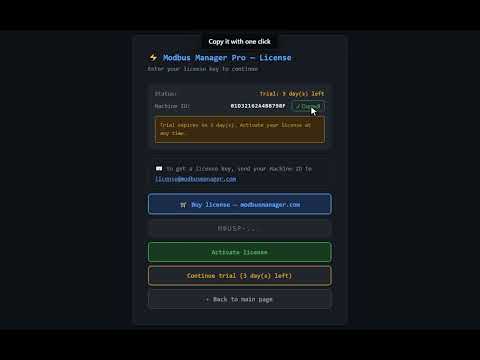
- Trial: 14 days with the full feature set, starting at first launch.
- Machine ID: a unique identifier for your computer, shown in the license dialog.
- Activation: enter the key issued for your Machine ID to unlock permanently. Keys are machine-bound, so a new computer needs a new key.
- Reinstalling: the trial start is recorded outside the application folder, so reinstalling does not reset it.
Languages
The interface is fully translated into 11 languages, selectable at any time from the toolbar: English, Chinese, Hindi, Spanish, French, Arabic, Bengali, Russian, Portuguese, Urdu and Estonian. Right-to-left layouts (Arabic, Urdu) are handled automatically.
Troubleshooting
| Symptom | Check |
|---|---|
| No response from a TCP device | Confirm IP and port (502), network reachability, and the slave/unit ID. |
| Serial (RTU) connection fails | Verify COM port, baud rate, parity, data and stop bits; check adapter drivers and RS-485 A/B polarity. |
| Values look wrong or scaled oddly | Try the word-swap and byte-order toggles, the 32-bit float option, and confirm address base (0 vs 1). |
| A dashboard widget shows nothing | Open its properties / Edit channels and confirm the source, slave ID and address — or that the tag exists and updates. |
| Trial expired | Activate a license key for your Machine ID from the license dialog. |
Two built-in tools can save you a support email: Auto-detect tries baud rates, parity settings and slave IDs until a device answers, then applies the working settings with one click. Diagnose reads the connection's recent error history and tells you whether it's a timeout, a protocol-level mismatch, or a bad port — instead of a generic error message.

